
External Server option allows you to assign an external VPS server location path to use the installed custom scanner system package from those locations. This reduces the main server load and allows better management of server location to verify email addresses during blacklist issues. Using this feature will ignore main server system for scanning where email verifier pro script has been installed. All data communication for verification takes place over API. You can add as many External servers you want.
Prerequisite #
External Servers must follow the same official requirements spec to work as mail servers. Make sure you have configured and set up each server to work as a proper mail server system.
Installation #
This video contains a full demonstration of setting up a VPS server for an external server API Service. (version 1.1)
VERSION 2.1 #
- Add your External API server in the main domain Settings > Email Scanner > External Server Settings option. Domain format: https://externalserver.com/ is accepted only. Make sure you have already configured SSL.
- Note down the domain name and the auto-generated API Key from the Main Server. This will require later.
- Extract ‘external-api-package.zip‘ package in public_html folder on the server where you selected to install this package.
- Visit https://externalserver.com/install to proceed installation of the External API Package.
- Fill up the required details as requested on the installation page.
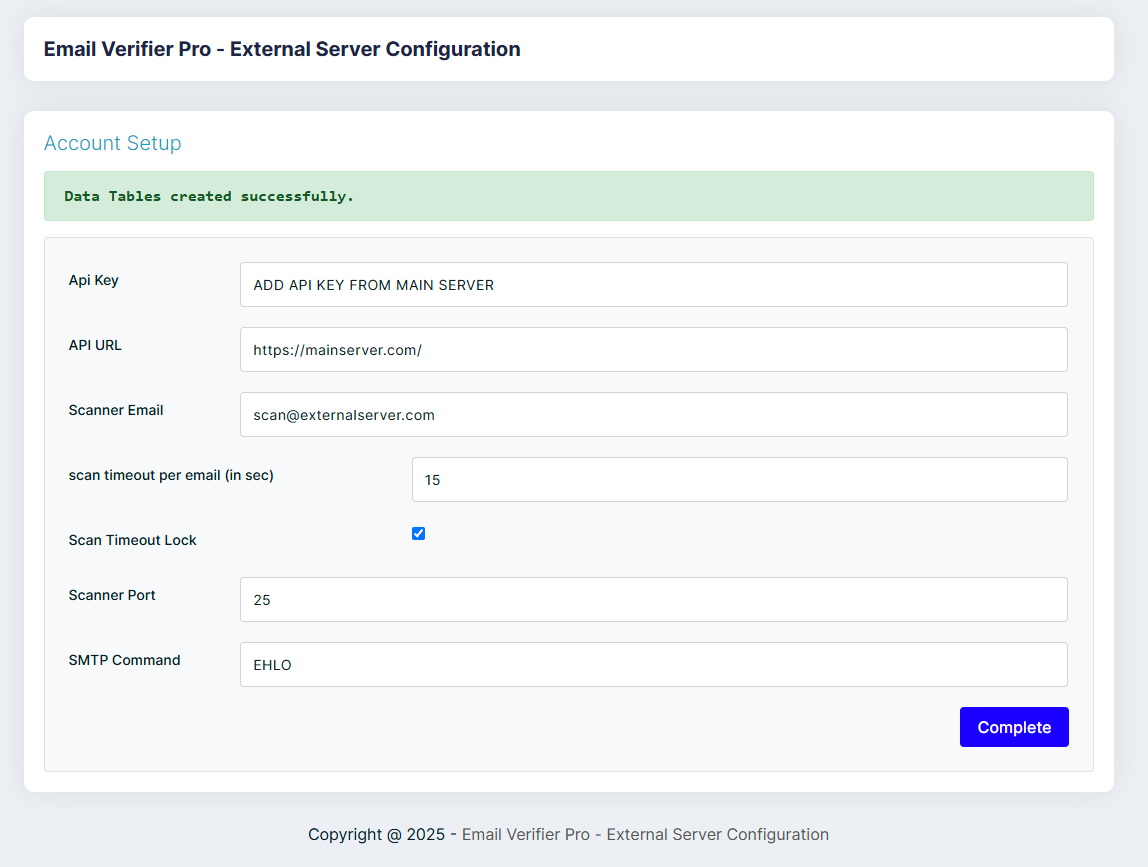
- Provide API URL key as your Main Server address eg: https://mainserver.com/
- Provide the API Key which received from the Main Server to this External Server
- Provide scanner email of external server eg: scan@externalserver.com
- The rest of the other fields can stay as default to have the best compatibility with main server.
- Click Complete to finish the installation.
- Visit https://externalserver.com/ to access your settings page of the external server. You will now be required to use the previous API Key to access. That is your password.
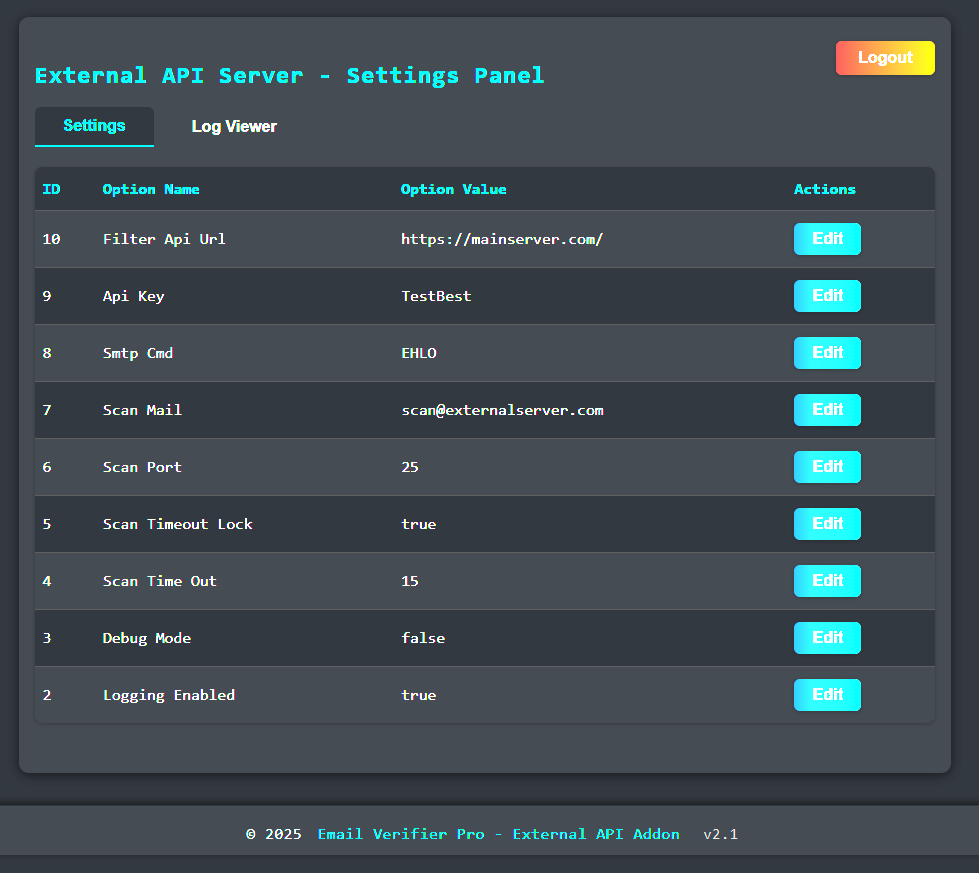
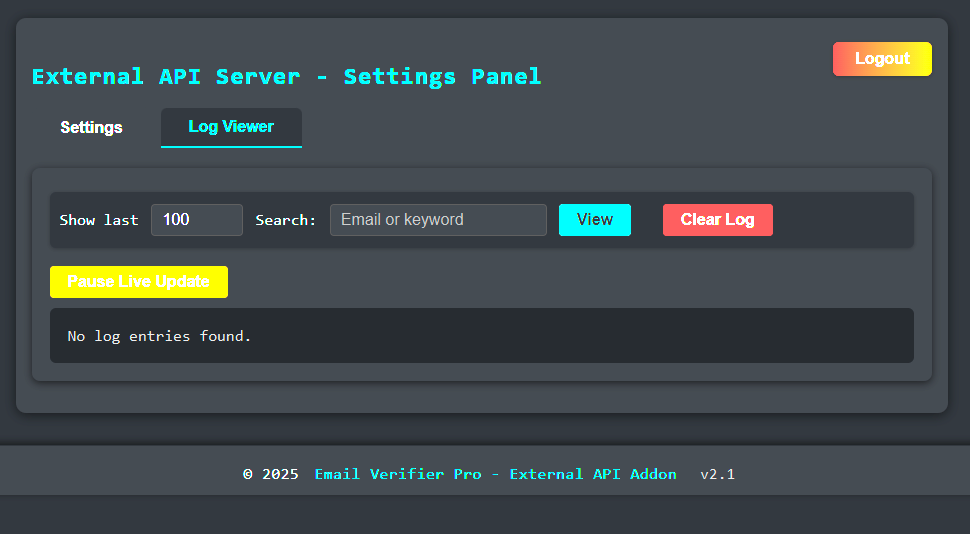
- After logging in, you will get the Settings page to change or update any option settings of the external server and enabling logging will give you access to a Log Viewer in a different tab.


Leave a Reply
You must be logged in to post a comment.